Download RollFerry.
For macOS 14 or later, Apple silicon and Intel.
Trial: scan and browse without limits. Buying unlocks crossing. See pricing.
Install
- Download
RollFerry-0.2.0.zip. - Double-click the zip.
RollFerry.appappears next to it. - Drag
RollFerry.appinto your Applications folder.
The first time you open it
macOS shows a message like “Apple could not verify ‘RollFerry’ is free of malware that may harm your Mac or compromise your privacy.”
That is macOS telling you the truth: it has not checked this app, because checking costs a yearly Apple developer subscription that RollFerry does not have yet. It is not a virus warning.
To open it anyway:
- Click Done on the message.
- Open System Settings → Privacy & Security.
- Scroll down. You will see “RollFerry” was blocked to protect your Mac.
- Click Open Anyway.
- Enter your Mac password or use Touch ID.
- A second message asks whether you are sure. Click Open.
RollFerry opens, and from then on it opens normally — you will not see either message again. If you replace RollFerry with a newer version later, you do this once more for that version.
If you would rather use the Terminal
One command does the same thing. It removes the “downloaded from the internet” mark that makes macOS ask:
xattr -d com.apple.quarantine /Applications/RollFerry.app
Then open RollFerry normally. If it says No such xattr, the
mark is already gone and you can just open the app.
Checking the download
Each release has a SHA-256 published next to it. To confirm your copy matches:
shasum -a 256 ~/Downloads/RollFerry-0.2.0.zipThe output should be the same string as the one above. If it is not, delete the file and download it again.
What RollFerry needs
- macOS 14 (Sonoma) or later, on Apple silicon or Intel.
- An Android phone and the USB cable that charges it.
- On the phone: pull down the USB notification and choose File transfer. Charging-only, MIDI and PTP modes do not let a Mac read photos, and RollFerry will tell you so.
If RollFerry says the phone is busy
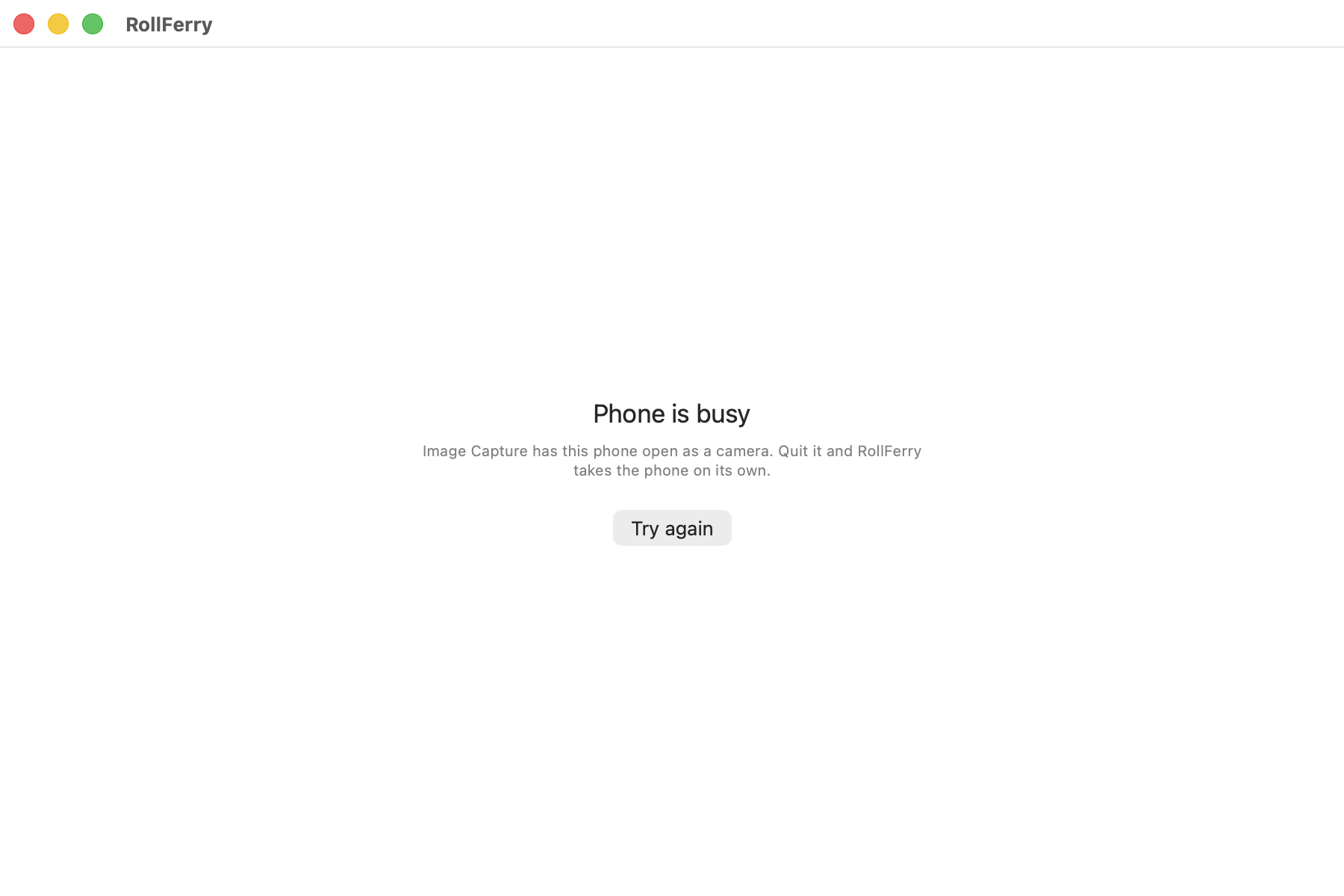
macOS has a camera service of its own, ptpcamerad. It claims
a phone the moment one appears, and whichever program claims it first
keeps it until it lets go — so if the service wins, RollFerry is locked
out.
The service is not always running. macOS starts it only when an app that reads cameras is open, so on a Mac with none of them open nothing competes for your phone at all. The fix is to close whatever is asking for it:
- Quit Preview, Image Capture and Photos.
- RollFerry takes the phone on its own within a few seconds. If it does not, unplug the phone, plug it back in, and click Try again.
Preview is the surprising one. It reads cameras, so having any document open in it is enough to start the service in the background.
If you cannot quit the app that is holding the phone, this frees it at once:
killall -9 ptpcameradThe service starts again the next time an app needs it, which does no harm: once RollFerry has the phone, it keeps it until you unplug it or quit the app.
Removing it
Drag RollFerry.app to the Trash. Nothing else is left behind
except its settings, which you can remove with:
rm -rf ~/Library/Containers/app.rollferry.RollFerryPhotos RollFerry has already copied to your Mac are ordinary files in the folder you chose. Removing the app never touches them.
Trial: scan and browse without limits. Buying unlocks crossing.